
Congratulations! You finally have vector files of your logo. Someone sent you an EPS file, maybe an AI file, possibly an SVG. You saved them on your computer, feeling accomplished.
Then you try to open one.
Double-click. Nothing happens. Or worse, your computer opens it in some random program that shows nothing but gibberish code or a gray box.
You’re thinking: I have the file. Why can’t I just… open it?
Here’s the problem: vector files aren’t like JPGs or PDFs that any computer can open automatically. They’re professional design files that need specific software to view and edit them.
But don’t worry, you don’t need to become a professional designer or spend hundreds of dollars on software just to work with your logo files.
This guide will show you:
- How to open different vector file types (EPS, SVG, AI, PDF)
- Free and paid software options for viewing and editing
- How to convert vector files to formats you CAN use (JPG, PNG)
- When to just use a PNG instead of wrestling with vectors
- What to do when someone asks for “the vector file”
Let’s fix this vector file confusion once and for all.
First: Do You Actually Need to Open the Vector File?
Before we dive into software and tutorials, let’s ask an important question: Do you really need to open and edit the vector file yourself?
Here’s the reality check:
You DON’T need to open vector files if:
✅ You just need your logo for your website → Use the PNG file instead
✅ You’re adding your logo to a Word document → Use PNG or JPG
✅ You’re posting on social media → Use PNG
✅ You’re creating a PowerPoint presentation → Use PNG
✅ You’re sending to someone else who will do the work → Just forward the vector file
Vector files are for professionals (printers, sign companies, designers) who need to scale, edit, or print your logo. For most everyday uses, a high-resolution PNG file works perfectly fine.
You DO need to open vector files if:
- You want to change the color of your logo yourself
- You need to adjust the size or proportions
- You’re editing text in your logo
- You want to separate elements (icon from text, for example)
- You’re preparing files for professional printing yourself
- You’re learning design and want to study how your logo was built
If you fall into the second category, keep reading. If you’re in the first category, skip to the section on “Converting Vector to PNG or JPG” below.
What You’re Actually Trying to Open
Let’s quickly review what vector files you might have:
EPS (.eps) – Industry standard, opens in professional design software
AI (.ai) – Adobe Illustrator’s native format, only opens in Illustrator (or similar)
SVG (.svg) – Web-friendly format, can open in browsers and design software
PDF (.pdf) – Can be vector or raster, usually opens anywhere but might not be editable
CDR (.cdr) – CorelDRAW format, only opens in CorelDRAW
Most commonly, you’ll receive EPS, PDF, and maybe SVG files. AI and CDR are working files that professionals keep.
Option 1: Free Software (For Casual Viewing and Basic Editing)
If you don’t want to spend money and just need to view, make simple edits, or convert your files, here are your free options:
Inkscape (Free, Open-Source)
What it is:
Inkscape is a free, professional-quality vector editor. It’s the Adobe Illustrator of the free world, powerful, feature-rich, and has a huge community of users.
Cost: Free
Works on: Windows, Mac, Linux
What it can open:
- ✅ SVG (native format, works perfectly)
- ✅ PDF (usually works well)
- ✅ AI (sometimes, depends on version)
- ⚠️ EPS (this is the tricky one, Inkscape struggles with EPS files)
Best for:
- Editing SVG files
- Basic color changes and adjustments
- Learning vector design
- Converting files to other formats
- Completely free solution
The catch:
Opening EPS files in Inkscape is frustrating. It often fails or produces weird results. If most of your files are EPS, Inkscape might not be ideal.
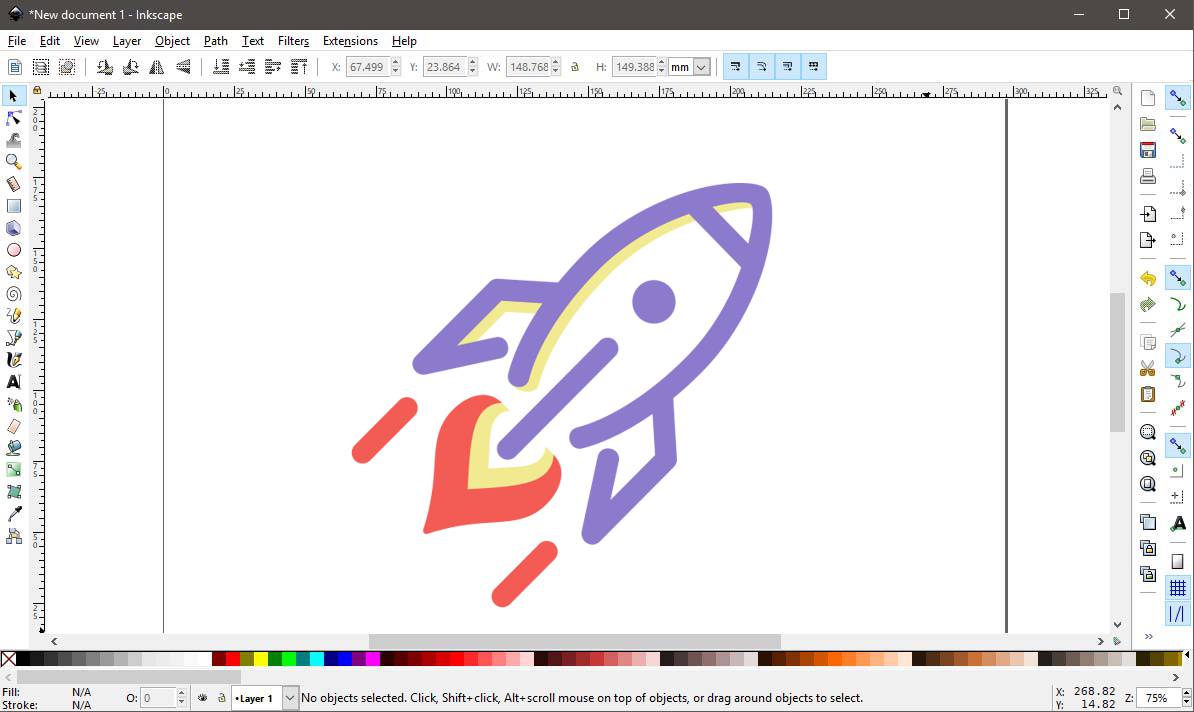
Where to get it:
https://inkscape.org
Learning curve:
Moderate. There are tons of YouTube tutorials, but it’ll take a few hours to feel comfortable.
Affinity (by Canva) – Professional & Completely Free
What it is:
In October 2025, Canva made a massive move: they relaunched Affinity as a completely free, professional-grade design suite. Affinity used to cost $70+ per app (Designer, Photo, Publisher) and was already considered the best Adobe alternative. Now it’s free forever, and it’s genuinely professional quality.
What it can open:
- ✅ EPS (works very well)
- ✅ SVG (perfect)
- ✅ PDF (excellent)
- ✅ AI (most versions work)
- ✅ PSD, TIFF, and dozens of other formats
Best for:
- Professional vector editing (logo work, illustration, design)
- Photo editing (if you also need that)
- Page layout and publishing
- People who want Adobe-level power without the cost
- Anyone serious about design but not wanting subscriptions
Where to get it:
https://www.affinity.studio
Learning curve:
Moderate. Similar to Illustrator if you know Adobe products. Tons of tutorials available. The interface is actually more intuitive than Adobe’s in many ways.
Why this changed everything:
When Canva bought Affinity in March 2024, designers worried it would get worse. Instead, Canva made it completely free in late 2025.
Bottom line: If you need to open, view, or edit vector files seriously, Affinity is now the best free option available, even better than paid alternatives.
Your Web Browser (For SVG Files Only)
What it is:
If you have an SVG file, you can literally just drag it into Chrome, Firefox, Safari, or Edge and it’ll display perfectly.
Cost: Free (you already have a browser)
Works on: Windows, Mac, Linux, anything with a browser
What it can open:
- ✅ SVG only
Best for:
- Quickly viewing an SVG file
- Checking how your logo looks
- Sharing a preview with someone
The catch:
You can’t edit it in a browser (well, technically you CAN if you know code, but that’s not practical for most people). You’re just viewing it.
How to do it:
- Find your
.svgfile - Drag it into your browser window
- Done, you’ll see your logo
If you need to zoom in, use your browser’s zoom (Ctrl/Cmd + Plus).
Preview (Mac Only – For Viewing PDF)
What it is:
If you’re on a Mac and have a vector PDF, Preview (built into macOS) can open and display it perfectly.
Cost: Free (built into Mac)
Works on: Mac only
What it can open:
- ✅ PDF (including vector PDFs)
- ✅ SVG (sometimes)
- ❌ EPS (nope)
- ❌ AI (nope)
Best for:
- Quickly viewing vector PDFs
- No software installation needed
- Super simple
The catch:
Very limited editing capabilities. You can annotate and make basic adjustments, but you can’t change colors, edit paths, or do real design work.
Google Drive / Google Drawings (Online, Free)
What it is:
You can upload SVG files to Google Drive and they’ll preview. Google Drawings can also import and display some vector files.
Cost: Free (if you have a Google account)
Works on: Any device with internet
What it can open:
- ✅ SVG (works well)
- ⚠️ PDF (views but might not preserve vector quality)
- ❌ EPS (nope)
Best for:
- Viewing files from anywhere
- Sharing files with team members
- Quick collaborative work
The catch:
Not a real vector editor. You can move things around and resize, but you can’t do professional editing.
Option 2: Paid Professional Software (For Serious Editing)
If you need to do real design work, edit your logo professionally, or open EPS files reliably, you’ll need professional software:
Adobe Illustrator (Industry Standard)
What it is:
The gold standard for vector design. Every professional designer uses this. It opens everything, does everything, and is what most vector files are created with.
Cost: $54.99/month (subscription)
Works on: Windows, Mac
What it can open:
- ✅ Everything (AI, EPS, SVG, PDF, CDR, you name it)
Best for:
- Professional design work
- Opening EPS files without issues
- Full editing control
- Industry-standard workflows
The catch:
- Expensive ($660/year)
- Steep learning curve (takes time to master)
- Subscription required (no one-time purchase)
- Overkill if you only need to open a file once
Where to get it:
https://www.adobe.com/products/illustrator.html
Worth it if:
- You’re doing design work regularly
- Your business needs professional design capabilities
- You work with designers and print shops frequently
Not worth it if:
- You just need to view files occasionally
- You’re only making simple color changes
- You’re not planning to learn design
CorelDRAW (Windows Alternative)
What it is:
A professional vector editor popular with sign companies, promotional product businesses, and Windows users.
Cost: $549 one-time OR $34.99/month subscription
Works on: Windows only
What it can open:
- ✅ Everything, especially CDR files (its native format)
- ✅ EPS, AI, SVG, PDF all work well
Best for:
- Sign and print businesses
- Windows users who want Illustrator alternative
- Opening CDR files specifically
The catch:
- Windows only (no Mac version)
- Learning curve similar to Illustrator
- Less common in general design industry
Where to get it:
https://www.coreldraw.com
Quick Comparison: Which Software Should You Choose?
| Software | Cost | Best For | Opens EPS? | Opens SVG? | Editing Power |
|---|---|---|---|---|---|
| Affinity (by Canva) | Free | Professional work, all file types | Perfect | Perfect | Full Pro |
| Inkscape | Free | Basic editing, SVG files | Struggles | Perfect | Good |
| Web Browser | Free | Quick SVG viewing | No | Yes | None |
| Preview (Mac) | Free | Quick PDF viewing | No | Sometimes | Minimal |
| Illustrator | $55/mo | Industry standard workflows | Perfect | Perfect | Full Pro |
| CorelDRAW | $35/mo or $549 | Sign/print businesses | Perfect | Yes | Full |
How to Open Your Vector File (Step by Step)
Let’s walk through the actual process:
Opening an EPS File


Option 1: Using Illustrator (if you have it)
- Open Adobe Illustrator
- File → Open
- Navigate to your .eps file
- Click Open
- Done, your logo appears, fully editable
Option 2: Using Affinity Designer
- Open Affinity Designer
- File → Open
- Select your .eps file
- Choose import settings (usually just click OK)
- Your logo appears
Option 3: Using Inkscape (might not work)
- Open Inkscape
- File → Import
- Select your .eps file
- Hope it works (sometimes it does, sometimes it doesn’t)
- If it fails, try converting the EPS to PDF first (see conversion section below)
Opening an SVG File
Option 1: Web Browser (easiest)
- Drag the .svg file into Chrome, Firefox, or Safari
- Your logo displays instantly
- You can zoom in to check quality
Option 2: Inkscape (for editing)
- Open Inkscape
- File → Open (not Import, just Open)
- Select your .svg file
- Your logo opens, fully editable
Option 3: Any vector software
SVG opens in basically every vector editor without issue.
Opening a PDF File
Option 1: Preview (Mac) or Adobe Reader (any computer)
- Double-click the PDF
- It opens automatically
- You can view it, but editing is limited
Option 2: Illustrator (for editing)
- Open Illustrator
- File → Open
- Select the PDF
- Choose which page to import (if it’s multi-page)
- Edit like any other vector file
Option 3: Inkscape
- File → Import
- Select the PDF
- Choose import settings
- Works most of the time
Opening an AI File
Reality check: AI files really only open properly in Adobe Illustrator.
Option 1: Illustrator
- File → Open
- Select the .ai file
- Works perfectly
Option 2: Affinity Designer or Inkscape (maybe)
- Try File → Open or Import
- Sometimes works, often doesn’t
- If it fails, ask whoever sent you the file for an EPS or PDF instead
Option 3: Ask for a different format
If you don’t have Illustrator and the AI file won’t open, just ask the person who sent it:
“Can you send this as EPS or PDF instead? I don’t have Illustrator.”
Professional designers can export AI files to other formats in seconds.
Converting Vector Files to PNG or JPG (The Easy Solution)
Here’s a secret: Most of the time, you don’t actually need to open or edit the vector file.
What you usually need is a high-quality PNG or JPG version for everyday use (website, documents, presentations, etc.).
Method 1: Online Converters (Easiest)
For EPS to JPG/PNG:
Use this free online tool:
https://convertio.co/eps-png/
- Upload your .eps file
- Choose output format (PNG with transparent background recommended)
- Download the converted file
- Done in 30 seconds
For SVG to PNG:
Use this tool:
https://svgtopng.com
- Upload your .svg file
- Choose size (pick at least 2000px width)
- Download PNG
- Done
For PDF to JPG/PNG:
Use:
https://www.ilovepdf.com/pdf_to_jpg
- Upload your PDF
- Choose quality (high)
- Download JPG or convert again to PNG
Method 2: Using Inkscape (Free, Better Quality Control)
If you have Inkscape installed:
- Open Inkscape
- File → Import → select your vector file (EPS, SVG, PDF)
- Once it’s visible, go to File → Export PNG Image
- Choose size (2000-4000px width is good)
- Choose location to save
- Click Export
- Done, you have a high-quality PNG
Method 3: Using Professional Software
If you have Illustrator, Affinity Designer, or CorelDRAW:
- Open your vector file
- File → Export (or Export As)
- Choose format: PNG or JPG
- Set resolution: 300 DPI minimum (or pixel dimensions: 2000px+ width)
- For PNG: enable transparent background
- Export
- Done
When to Use What Format
Now that you can open and convert your files, here’s when to use each:
Use the Vector File (EPS, AI, SVG) When:
- Sending to a professional printer
- Giving files to a sign company
- Sending to an embroidery shop
- Working with a designer who will modify it
- Printing large format (banners, billboards, vehicle wraps)
- You need infinite scalability
Use PNG When:
- Adding logo to your website
- Email signatures
- PowerPoint presentations
- Word documents
- Social media graphics
- Anywhere you need transparency (no background)
- General everyday use
Use JPG When:
- File size needs to be small
- Transparency isn’t needed
- Quick sharing via email
- Printing photos or materials with backgrounds
Common Problems (And How to Fix Them)
Problem 1: “The file opens but looks weird or broken”
Solution:
- The file might be corrupted
- The software might not fully support that file version
- Try opening in different software
- Ask whoever created it to re-send or send in a different format
Problem 2: “I can view it but can’t edit anything”
Solution:
- You might be using viewing software (like Preview or a browser) instead of editing software
- Open it in Inkscape, Illustrator, or Affinity Designer for editing capabilities
Problem 3: “The text looks wrong or is missing”
Solution:
- The fonts aren’t installed on your computer
- Ask whoever created the file to “outline the fonts” and resend
- Install the missing fonts on your system
Problem 5: “I just need to change the color quickly”
Easiest solution:
Don’t wrestle with vector files. Instead:
- Convert your vector to PNG
- Use a simple online tool like Photopea (free Photoshop alternative online)
- Or just ask whoever created your logo to make the color change (might cost $20-50)
- Or contact a professional service
What to Do If You’re Completely Stuck
If you’ve tried everything and still can’t open, view, or use your vector files, you have options:
Option 1: Ask the Person Who Created Your Logo
Email them:
“Hi, I’m having trouble opening the vector files you sent. Can you please send me:
- High-resolution PNG files (transparent background, at least 2000px wide)
- Vector PDF (easier to open than EPS)
- Maybe JPG versions too
Thanks!”
Most designers will send these within a few minutes.
Option 2: Use an Online Service
Pay someone on Fiverr or Upwork $5-10 to convert your files to the formats you need.
Option 3: Just Use PNG for Everything
Here’s a reality check: unless you’re doing professional printing or design work, high-resolution PNG files work for 90% of what small businesses need.
If you have PNG versions of your logo (2000px+ wide, transparent background), you can:
- Use it on your website
- Print business cards (if it’s high enough resolution)
- Add it to documents and presentations
- Use it on social media
- Email it to vendors
You only truly need to open and edit vector files if you’re making design changes or doing large-format professional printing.
Summary: The Simple Path Forward
Here’s the no-nonsense approach:
If you just need to view your logo:
- SVG files → Open in your web browser
- PDF files → Open in Preview (Mac) or Adobe Reader
- EPS files → Use an online converter to turn it into PNG
If you need to edit your logo:
- Free option → Download Inkscape (works best with SVG and PDF)
- Paid option → Adobe Illustrator ($55/month) or Affinity Designer ($70 one-time)
If you just need PNG or JPG versions:
- Use online converters (free, takes 30 seconds)
- Or use Inkscape to export PNG (free, better quality control)
If you’re completely stuck:
- Ask the original designer for PNG files
- Pay $5-10 for someone to convert them
- Focus on using high-res PNG files for everyday needs
Remember: Vector files are professional tools. It’s perfectly okay to NOT open them yourself and just use PNG versions for your daily needs.
Need Professional Vector Files You Can Actually Use?
If you’re struggling with file formats, or you only have low-quality JPG/PNG versions of your logo and need real vector files, we can help.
VectorYourLogo.com creates professional, print-ready vector files from any logo image you have. You’ll receive:
✓ EPS file (opens in any professional software)
✓ SVG (Ideal for websites)
✓ Vector PDF (easy to share and view)
✓ High-resolution PNG files (for everything else)
✓ All formats tested and ready to use
No software wrestling. No format confusion. Just professional files that work everywhere.
Typical turnaround: 24 to 48 hours
Fixed price: $89
Get Your Logo Vectorized Today →
Learn more about vector logos:
- What is a Vector Logo? – Understand the basics
- What is a Vector File Format? – Learn about EPS, SVG, PDF, AI
- How to Convert My Logo to Vectors? – Compare your conversion options
- I Created My Logo with AI, Now What? – Guide for AI-generated logos

When your logo needs to do more than sit on a screen, it needs a vector master that works everywhere. VectorYourLogo.com exists to turn your current logo into a clean, professional vector file without high designer rates.
Send your logo and get it ready for print, signs, web, and anything else your business needs.
- Mario Vargas